Code Server Guide#
This guide explains how to use Code Server in AUP Learning Cloud. Code Server provides a browser-based VS Code experience for coding, terminals, extensions, debugging, and web application previews.
For login, environment selection, storage, and stopping servers, start with Platform Basics.
When To Use Code Server#
Use Code Server when you want to:
Work in a VS Code-style editor from the browser
Use integrated terminals
Run scripts, training jobs, or development servers
Install editor extensions
Preview web applications through forwarded ports
Work with multi-file projects or Git repositories
If your task is mainly notebook-based, use JupyterLab Guide.
Start A Code Server Environment#
Sign in to AUP Learning Cloud.
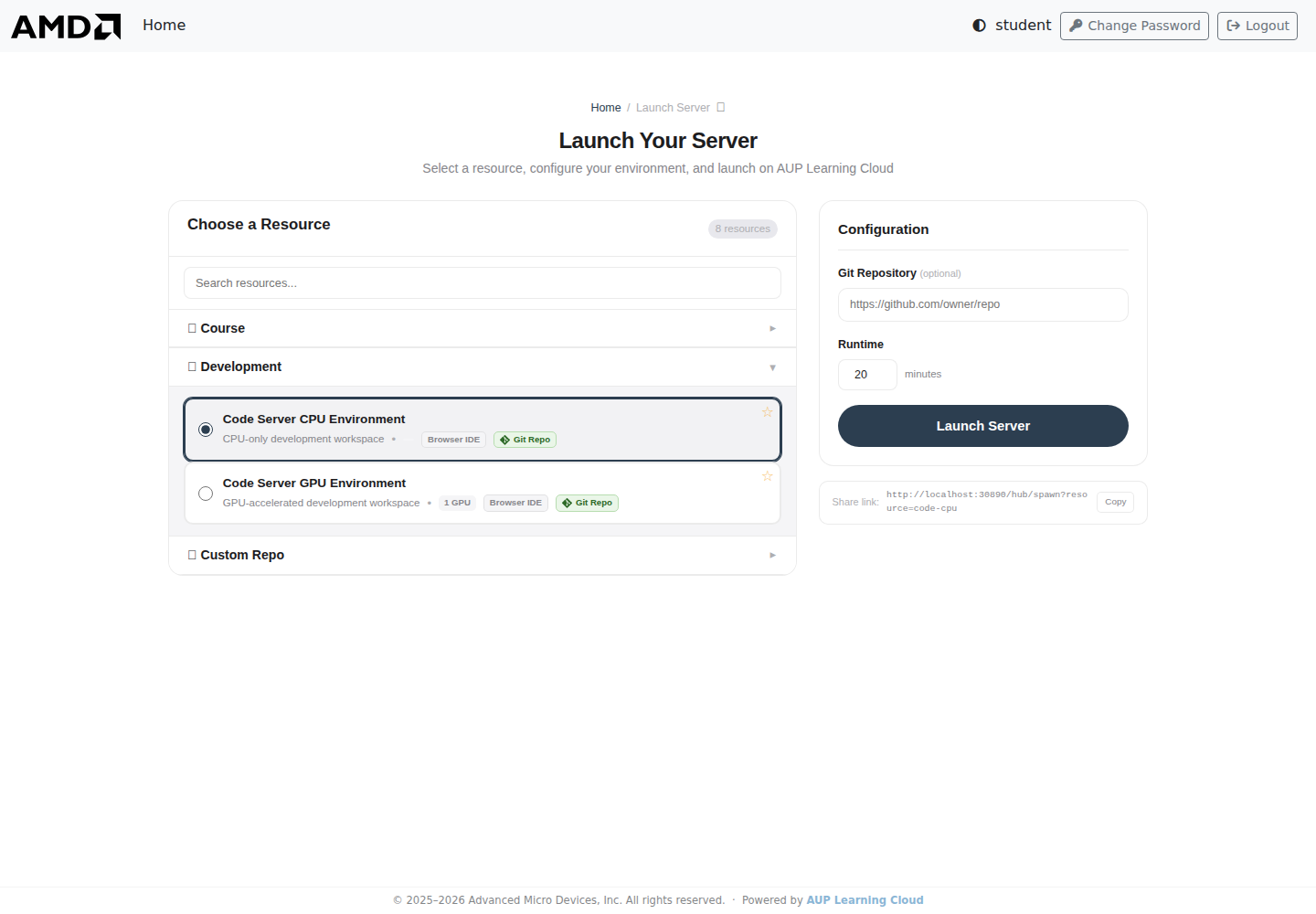
Select Code Server CPU Environment or Code Server GPU Environment.
Choose the required hardware resources.
Choose the runtime duration.
Click Launch Server.
Wait for the browser to open the VS Code interface.
Interface Overview#
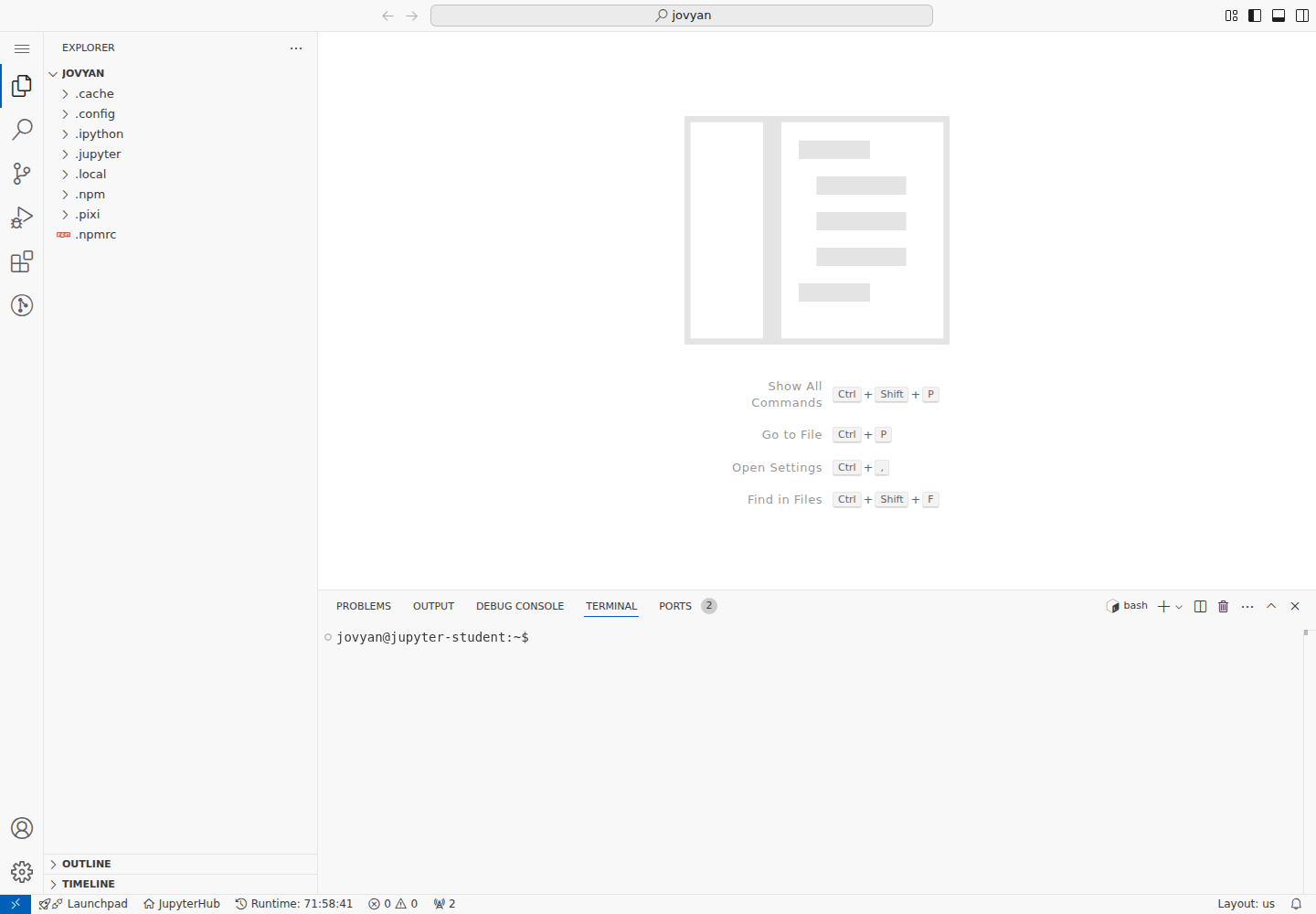
The Code Server interface is similar to local VS Code:
Left side: Explorer, Search, Source Control, Run and Debug, Extensions
Center: code editor
Bottom panel: Terminal, Ports, Output, Problems
Use The Terminal#
Open the integrated terminal with `Ctrl + `` or from the top menu.
Common commands:
# Check GPU status in GPU environments
rocm-smi

# Install Python packages
pip install torch torchvision

# Run a script
python train.py

# Start a simple web server
python -m http.server 8080
You can open multiple terminal sessions by clicking the + button in the terminal panel.
Save Files#
Use the same storage rules as other AUP Learning Cloud environments:
Save important work under
/home/jovyan.Do not rely on temporary or image-provided directories for long-term storage.
Copy work to
/home/jovyanbefore stopping the server.
Example:
cp <file-or-directory-to-save> /home/jovyan/
Port Forwarding#
When you run a web service inside Code Server, the platform can expose it through the browser.
Example:
python -m http.server 8080
After the service starts:
Open the PORTS panel.
Select the forwarded port and open the forwarded address.
If a notification appears, you can also click Open in Browser.
If the port does not appear automatically, add it manually in the PORTS panel.
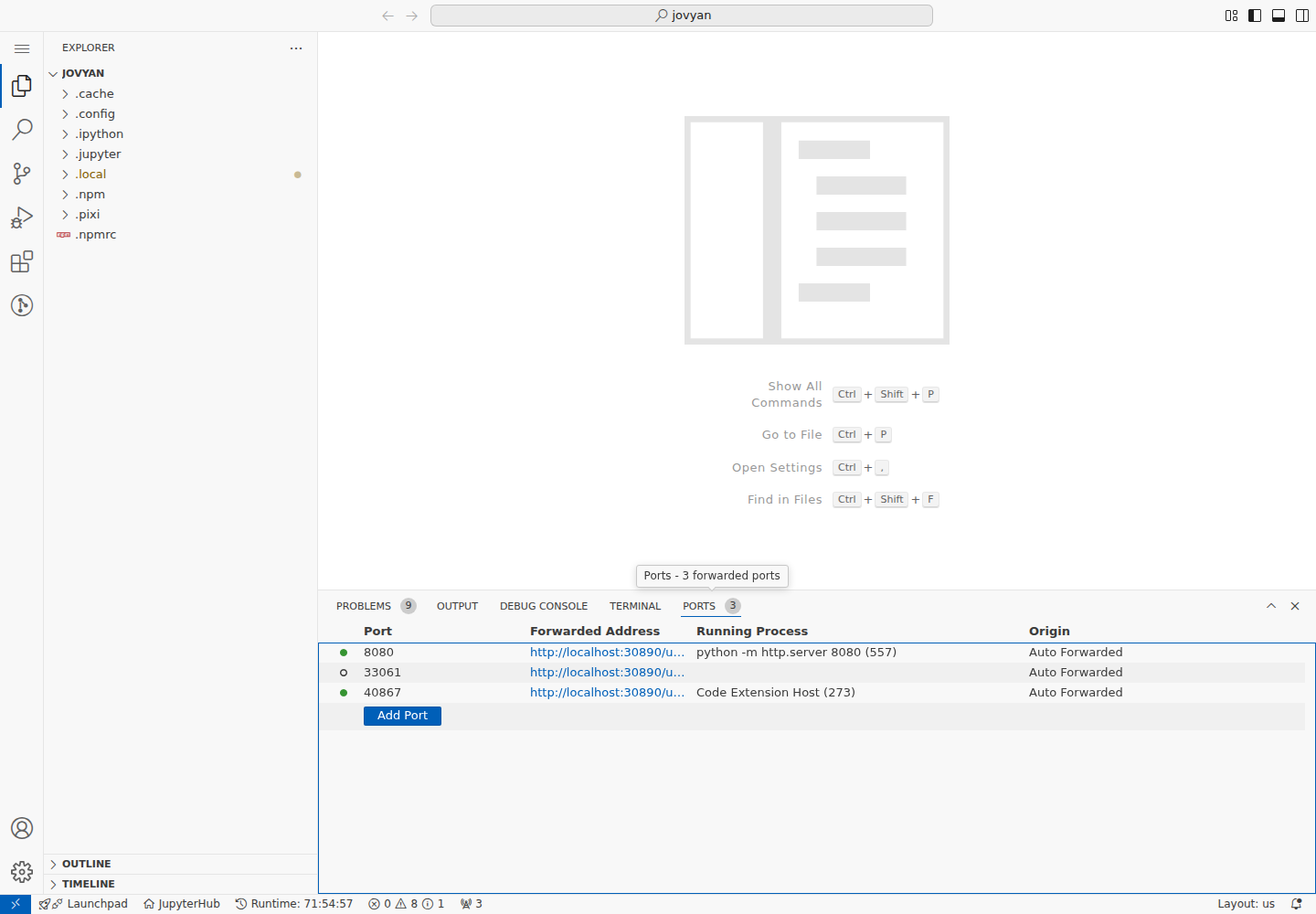
Forwarded URLs usually follow this pattern:
https://tpe.aupcloud.io/user/<your-username>/proxy/<port>/
Example:
https://tpe.aupcloud.io/user/github%3Ausername/proxy/3000/
Note
Port forwarding works for HTTP and WebSocket services that listen on a port inside your remote environment. Make sure your application is actually running and listening on the expected port.
Extensions#
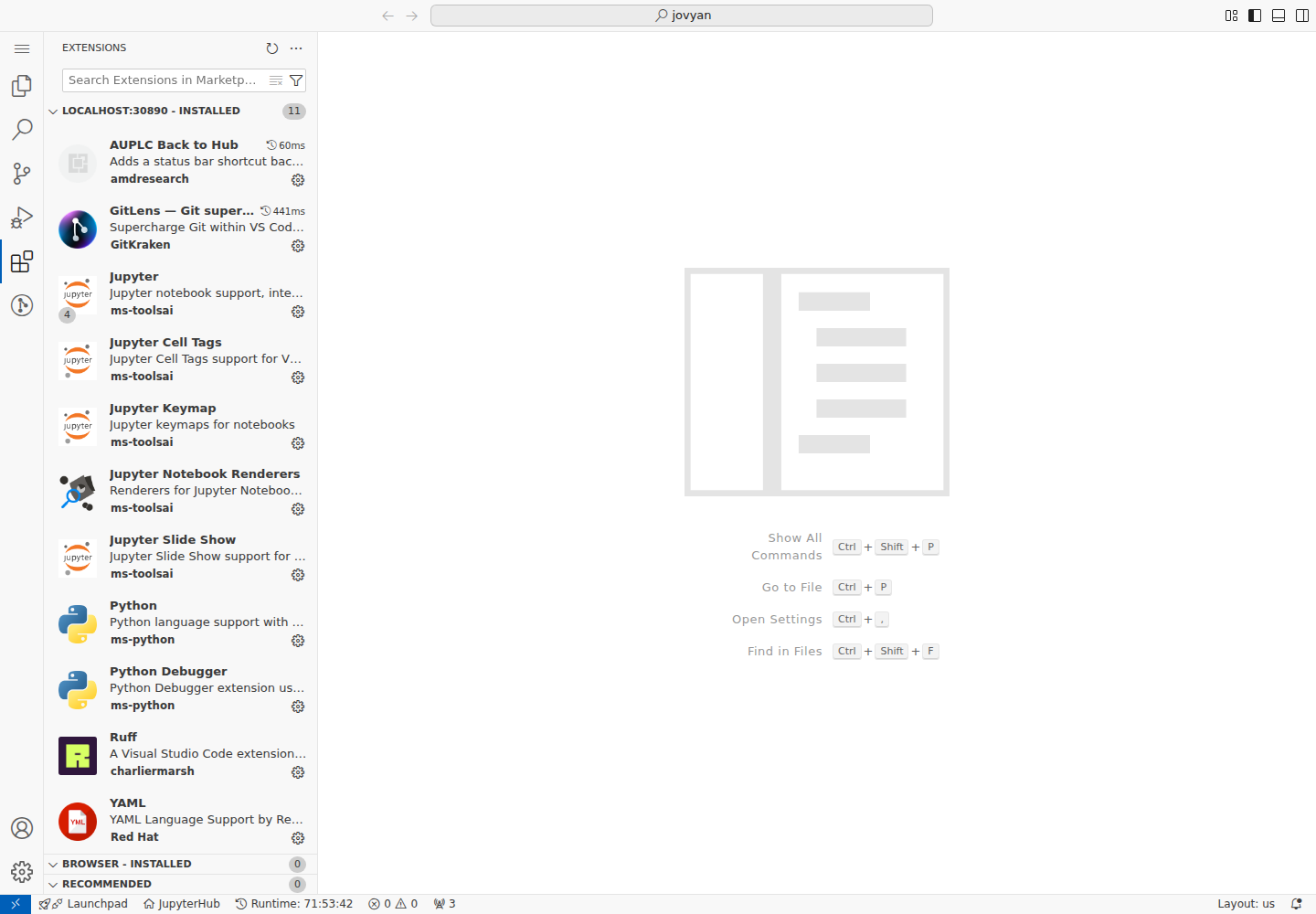
Code Server supports many VS Code extensions. Common preinstalled extensions may include:
Extension |
Purpose |
|---|---|
Python |
Python language support, IntelliSense, and debugging |
Jupyter |
Notebook support inside VS Code |
GitLens |
Git history, blame, and comparison tools |
Python Debugger |
Python breakpoint debugging |
Ruff |
Python formatting and linting |
YAML |
YAML syntax support |
To install an extension:
Open the Extensions panel on the left.
Search for the extension name.
Click Install.
Recommended extensions for some workflows:
C/C++: C/C++ development support
ROCm HIP: AMD GPU programming support
Remote - Containers: container development support
Thunder Client: lightweight API testing
Markdown Preview: live Markdown preview
Note
Extensions are installed in the remote environment. After a server restart or image change, you may need to install some extensions again. Keep a short list of your commonly used extensions.
Stop Code Server#
Before leaving:
Save your files.
Stop long-running terminal processes that you no longer need.
Copy important work to
/home/jovyan.Return to the Hub control page.
Click Stop my server.
Troubleshooting#
Port forwarding does not work#
Confirm the service is running.
Confirm the service is listening on the expected port.
Check the PORTS panel.
Add the port manually if needed.
Refresh the browser page and try again.
Extension installation fails#
Check the network connection.
Refresh the page and try again.
Search for an alternative extension.
Some desktop-only extensions may not fully support browser-based VS Code.
The terminal command cannot find a file#
Check the current directory with
pwd.List files with
ls.Use absolute paths when needed.
Confirm important files are stored under
/home/jovyan.